 Modern Age Coders
Welcome to your coding dashboard
We upgraded everything. One place for your classes, your attendance, your class notes and recordings — this page shows you how to get in and how it all works. It takes about five minutes to read.
Open your invite link
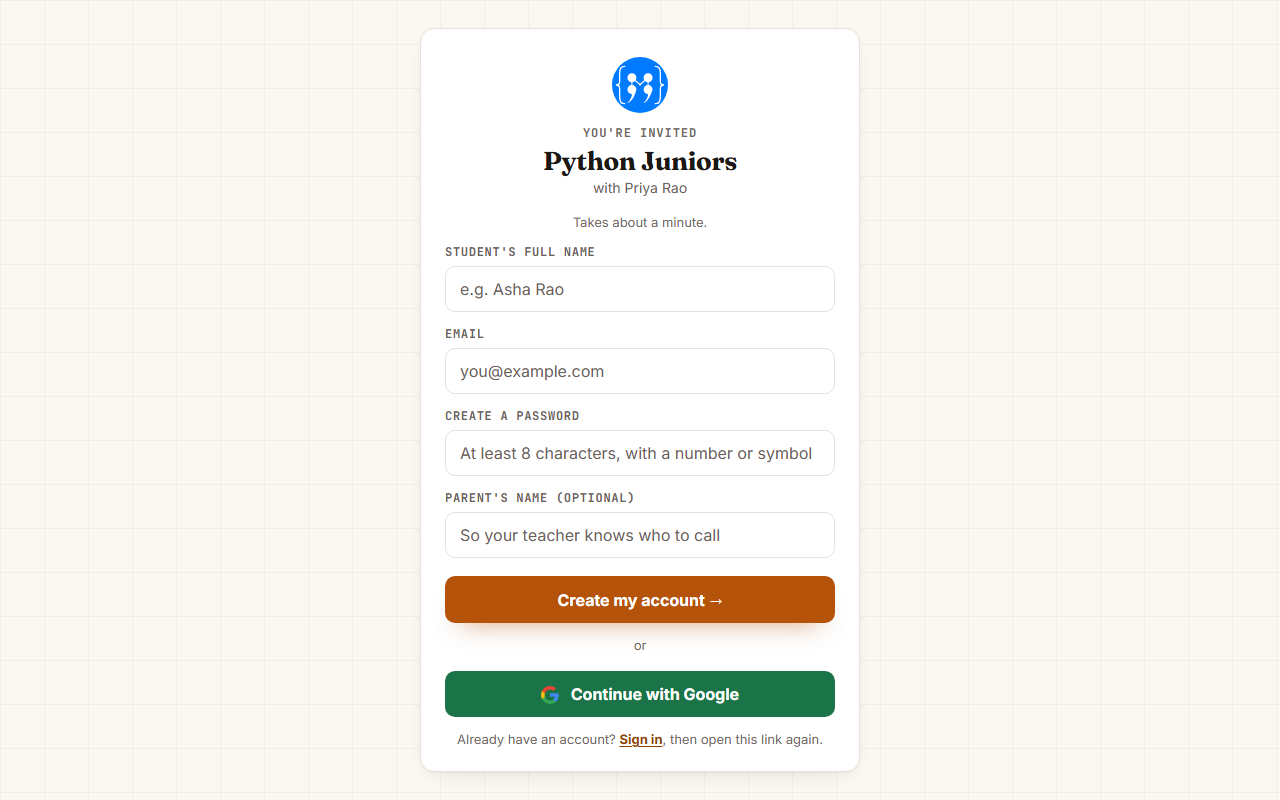
Your teacher sends every student a special link on WhatsApp. It opens a card like this, with your course's name on it — that link is your door into the course, so open it on the device you will use for classes.
Create your account
Two ways, pick one:
- Continue with Google (green button) — fastest. Pick your Google account and you land straight on your dashboard, already in your course. Done.
- Email and password — type your full name, your email, and a password of at least 8 characters with a number or symbol in it. A parent's name is optional but helps your teacher know who to call.
One account per student. If you already have an account and get a new course's link, just open the link and press Sign in — the new course joins your same account. Never make a second account.
Confirm your email
If you signed up with email and password, we send you a confirmation email from noreply@modernagecoders.com. Open it, press the button inside, come back, and press I clicked the link — your dashboard opens.
- Can't find it? Check your Spam folder first.
- Still nothing? Press Send it again on the screen.
- Signed up with Google? You skip this step completely.
Meet your dashboard
Five tabs along the top. Here is what each one does.
Home — your next class lives here
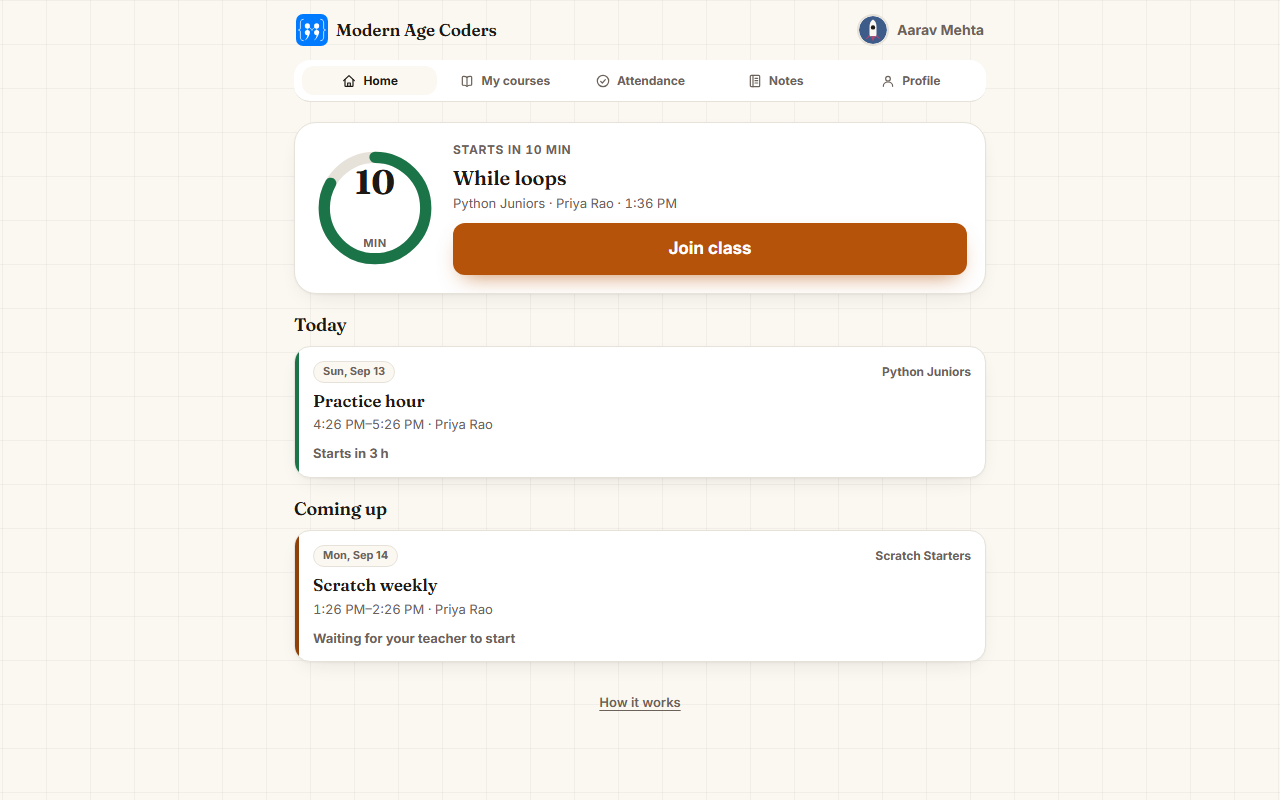
My courses — everything about each course
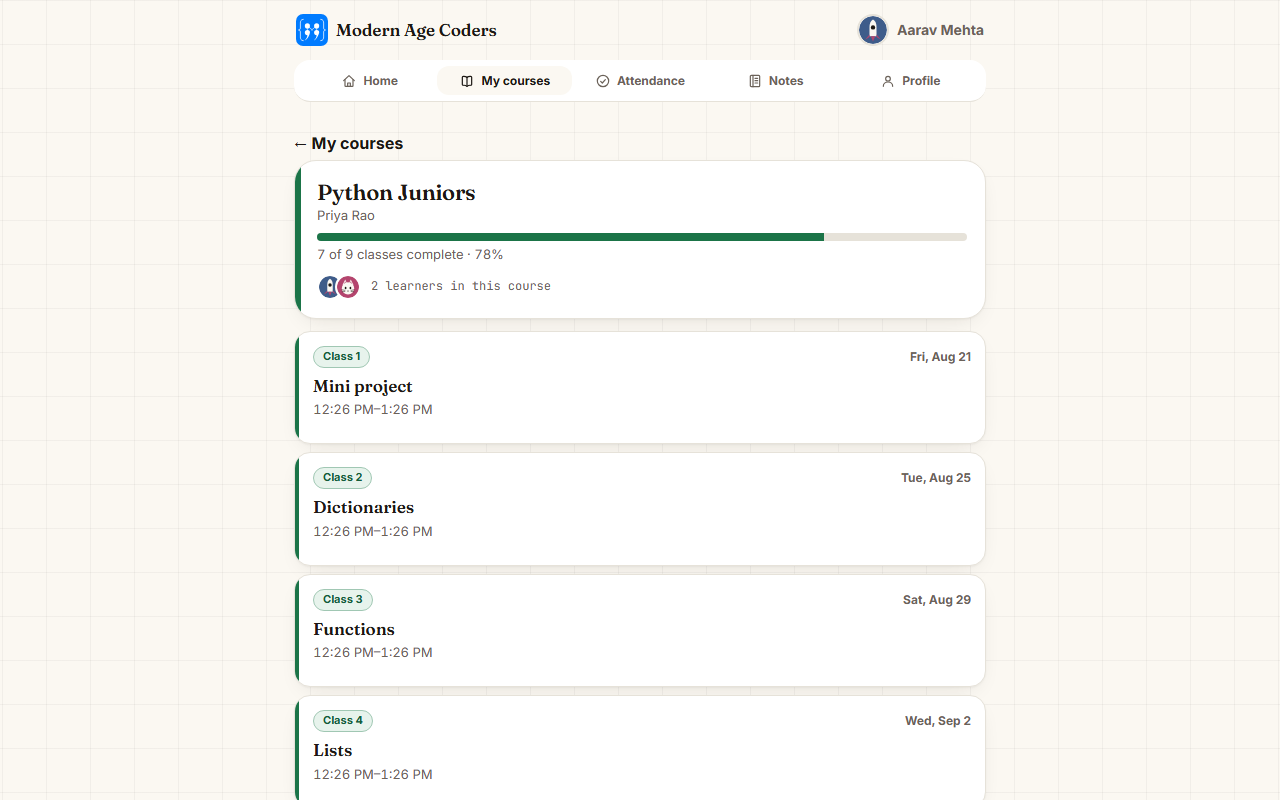
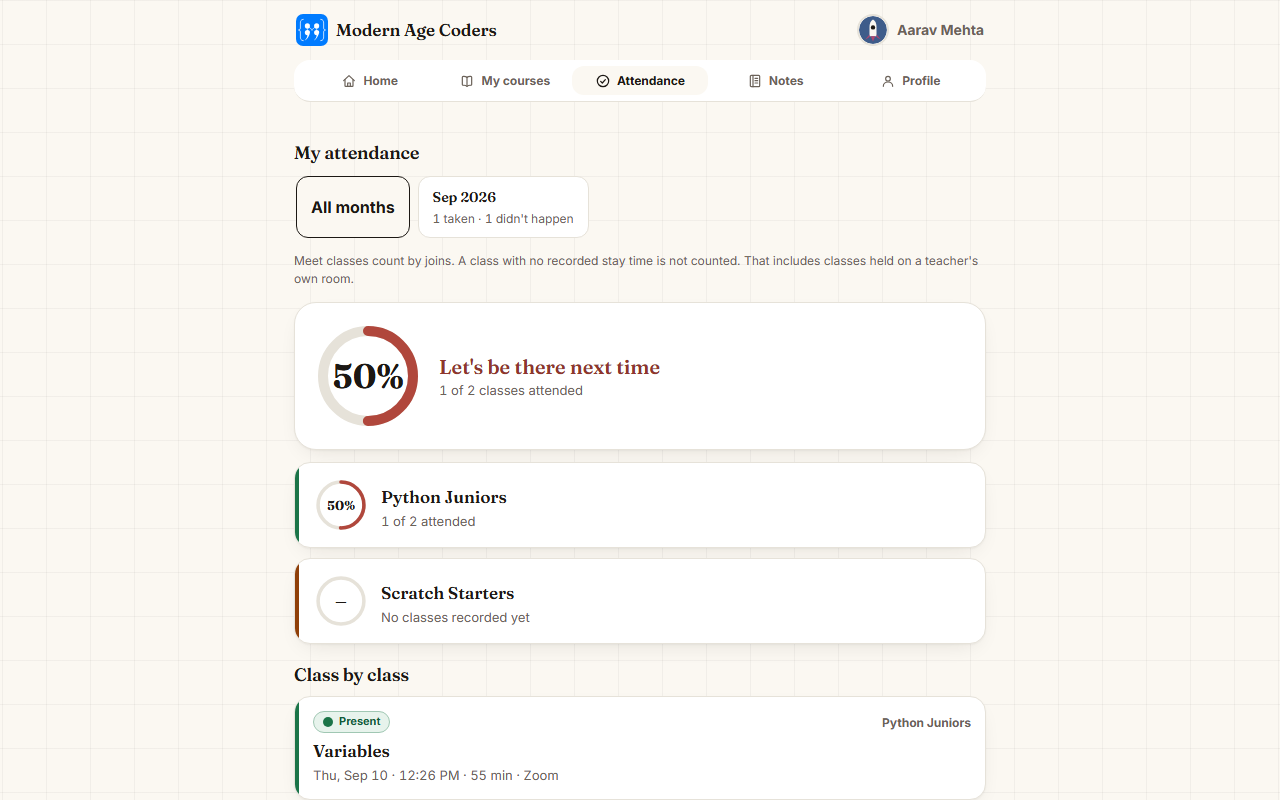
Attendance — your months, honestly counted
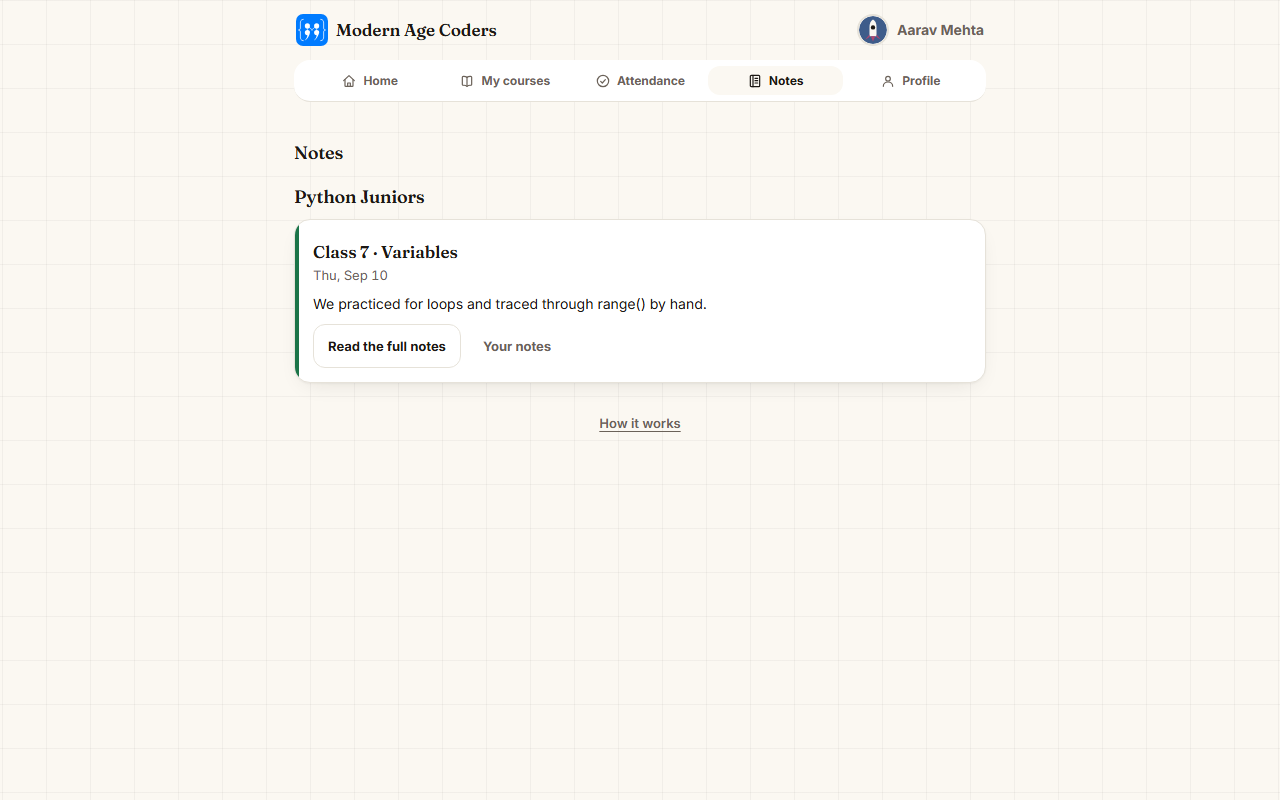
Notes — what happened in every class
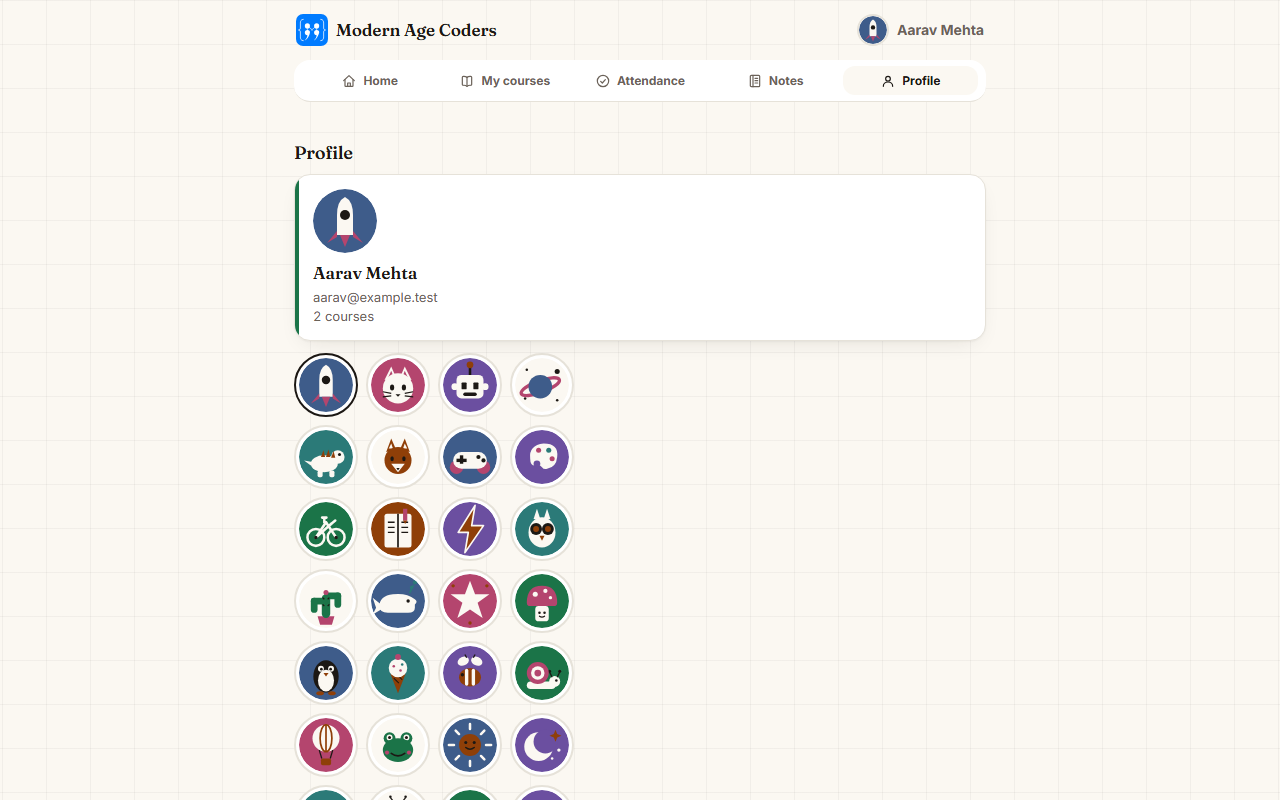
Profile — pick your face
Joining your class
- Come to your dashboard about 5 minutes before class time.
- The Join class button turns on by itself 5 minutes before start — or the moment your teacher starts the class, whichever comes first. Press it — it opens the room for everyone, even if your teacher hasn't arrived yet. Once the class has started you can join at any time. You never have to wait for a link.
- If the one-click join ever misbehaves, press Join with meeting ID instead under the button — it shows the meeting ID and passcode to type into Zoom directly.
That's really it. Open dashboard → press Join → you're in class. Attendance records itself.
Set yourself up for the best experience
Install the Zoom app
Classes run on Zoom, and the app is much smoother than the browser. Download it free at zoom.us/download on your computer (or from the Play Store / App Store). You don't need a Zoom account — just the app.
Use a laptop or computer for coding
In coding classes you write code while watching your teacher — that needs a keyboard and a proper screen. A phone is fine for watching a recording, but for live coding sessions, a laptop or desktop makes all the difference.
Headphones + a quiet spot
You'll hear your teacher clearly and your class won't hear your home.
Stable internet
Sit near your Wi-Fi router if you can. If video ever freezes, turning your camera off usually fixes the sound.
Our few house rules
Be on time
Join by class time — the button is ready 5 minutes early, so there's no excuse to be late.
One account, your account
Always sign in with the same email. Keep your password to yourself and your parents.
Ask questions
Stuck is normal — that's what class is for. Unmute and ask, or type in the chat.
Be kind
Cameras, chat, everywhere. We learn together.
Missed a class?
Open the course, watch the recording, read the Notes card — then you're ready for the next one.
Parents welcome
Parents can watch the dashboard with you — attendance and notes show exactly how your course is going.